This is valid for Windows, Linux, and macOS.
- Download and install Tor Browser
- Open Tor Browser
Usage and Precautions:
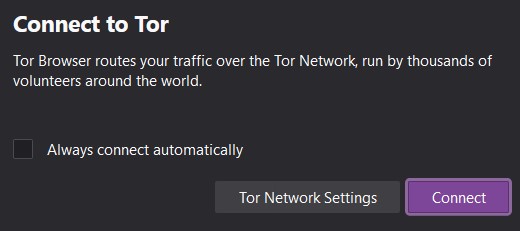
- After opening Tor Browser, you will see an option to connect, a checkbox to connect automatically and a button to go into Tor Network Settings. The Tor Network settings are there for you to possibly configure Bridges to connect to Tor if you are experiencing issues connecting to Tor due to Censorship or Blocking as explained here: Appendix X: Using Tor bridges in hostile environments.
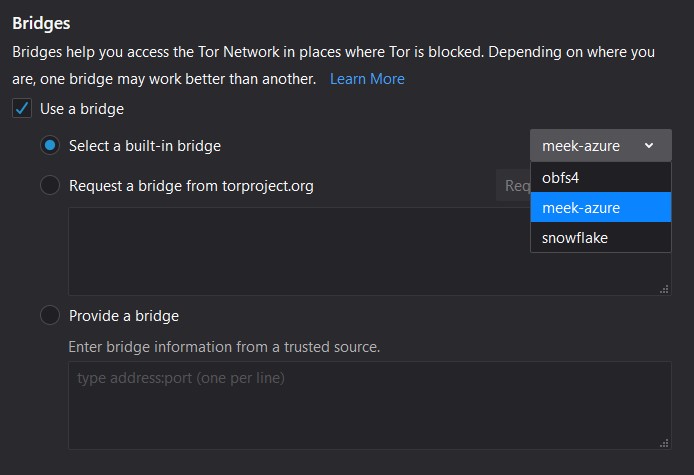
Personally, in the case of censorship or blocking, I would recommend using Meek-Azure bridges if needed. And Snowflake bridges as a second option.
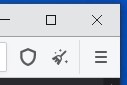
At this point, still before connecting, you should click the little shield Icon (upper right, next to the Address bar) and select your Security level (see https://tb-manual.torproject.org/security-settings/ for details). Basically, there are three.
-
Standard (the default):
- All features are enabled (including JavaScript)
-
Safer:
- JavaScript is disabled on non-HTTPS websites
- Some fonts and symbols are disabled
- Any media playback is “click to play” (disabled by default)
-
Safest:
- Javascript is disabled everywhere
- Some fonts and symbols are disabled
- Any media playback is “click to play” (disabled by default)
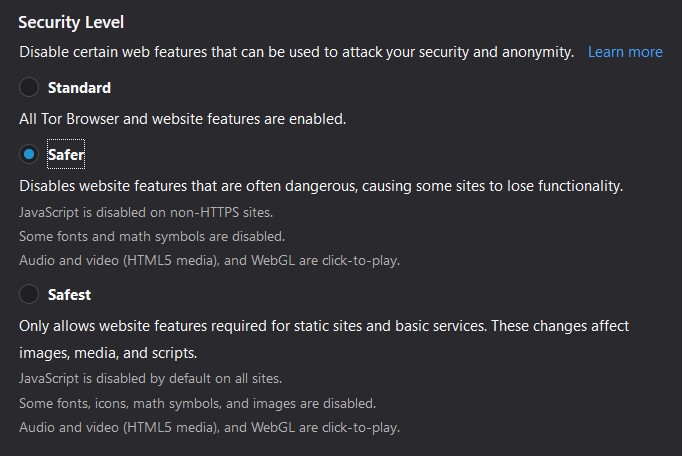
I would recommend the “Safer” level for most cases. The Safest level should only be enabled if you think you are accessing suspicious or dangerous websites or if you are extra paranoid. The Safest mode will also most likely break many websites that rely actively on JavaScript.
(Optional and not recommended by the Tor Project, [this is a personal choice I made]) If you are not using the “Safest” level, I will diverge from some but agree with others (for instance the Tails project and others) and will actually recommend some modifications of the default Tor Browser in the addition of two extensions:
-
uBlock Origin (as it is the case on Tails) while leaving the extension on the default settings:
- Head over to https://addons.mozilla.org/en-US/firefox/addon/ublock-origin/ within Tor Browser and install the extension.
-
Privacy Redirect: This is very practical if you use the “Safest” mode as Invidious instances require no JavaScript.
- Head over to https://addons.mozilla.org/en-US/firefox/addon/privacy-redirect/ within Tor Browser and install the extension.
- While the settings for Invidious and Nitter instances are random, I would recommend setting them to “nitter.net” for Nitter and “yewtu.be” for Invidious.
Let’s keep in mind that even 3 letters agencies recommend blocking ads for their internal users in order to improve security.
If you did not go for the above personal and not officially recommended options, the Safer level should still be used with some extra precautions while using some websites: see Appendix A5: Additional browser precautions with JavaScript enabled.
Now, you are really done, and you can now surf the web anonymously from your desktop device.
Source: The Hitchhiker’s Guide to Online Anonymity, written by AnonyPla © CC BY-NC 4.0